Guide · Windows 10 & 11 · Updated October 2026
Getting your windows back after undocking a laptop
You pull the cable, everything piles onto the laptop screen, and when you dock again the pile stays. This is not a fault in your dock – it is what Windows is supposed to do on the way out, combined with the fact that nothing is responsible for the way back in.
What happens on the way out
Undocking removes displays from the desktop’s coordinate space. Any window positioned on a display that no longer exists would be invisible and unreachable, so Windows relocates it to a screen you still have. On a laptop that means everything lands on the built-in panel, usually overlapping, often resized to fit.
That resize is why re-docking rarely looks right even when windows do come back. A window that was 2400 pixels wide on an external monitor cannot stay 2400 pixels wide on a 1920-pixel laptop screen. Windows shrinks it, and the original size is not stored anywhere – so even a perfect restore of positions gives you windows in the right places at the wrong sizes.
Why re-docking is a race
Reconnecting is not a single event. Over several seconds, in an order that varies from run to run:
- the dock enumerates on USB and negotiates power
- each display is detected, its EDID read, a mode set
- Windows rebuilds the desktop and moves the taskbar
- DPI is re-evaluated per monitor, which resizes windows again
- anything watching for display changes finally gets told
Whatever restores your layout has to act after all of that has settled. Act too early and windows land on a display whose resolution is about to change, or on one that hasn’t appeared yet. This is the most common reason an automatic restore “works sometimes”.
The fixes, cheapest first
Turn on the two multiple-display settings
Settings → System → Display → Multiple displays, then enable both Remember window locations based on monitor connection and Minimize windows when a monitor is disconnected. The second one matters more than it sounds: a minimized window has no position to lose, so it survives the undock and comes back at its old size.
Limits: Windows 11 only. One remembered arrangement per monitor configuration, and it loses the race described above often enough to be noticeable.
Dock the same way every time
Windows keys its remembered arrangement to the monitor configuration it detects. Swap which monitor is on which port, use a different dock, or connect a screen directly one day and through the dock the next, and Windows sees a new configuration with nothing stored for it.
Limits: no help for hot desks where the monitors genuinely differ between locations.
Update the dock firmware, then the graphics driver
Display renegotiation on reconnect is among the most frequently patched behaviours in dock firmware. Do the dock first, the GPU driver second – in that order, so you can tell which one changed things.
Limits: some vendors’ updaters only run while the dock is attached to a supported model.
Give the desktop a moment before you judge it
If you restore a layout by hand, wait until the taskbar has settled on the right screen. That is a reliable sign that the topology change is finished.
Limits: a workaround for a timing problem, not a fix for it.
Keep the external display present even when undocked
For a fixed desk where the laptop leaves but the monitors stay powered, a display emulator dongle on the dock keeps a display in the topology, so the collapse never happens.
Limits: your undocked laptop then has an invisible extra desktop that windows can get lost on – the opposite problem.
The part none of this solves
Every step above is about surviving the transition with one arrangement intact. That is the right goal if your desk setup never changes. It is the wrong goal if the arrangement itself depends on where you are: two screens at the office, one at home, three in the lab – each wants a different layout.
Where DeskScene comes in
Auto-restore, per monitor setup
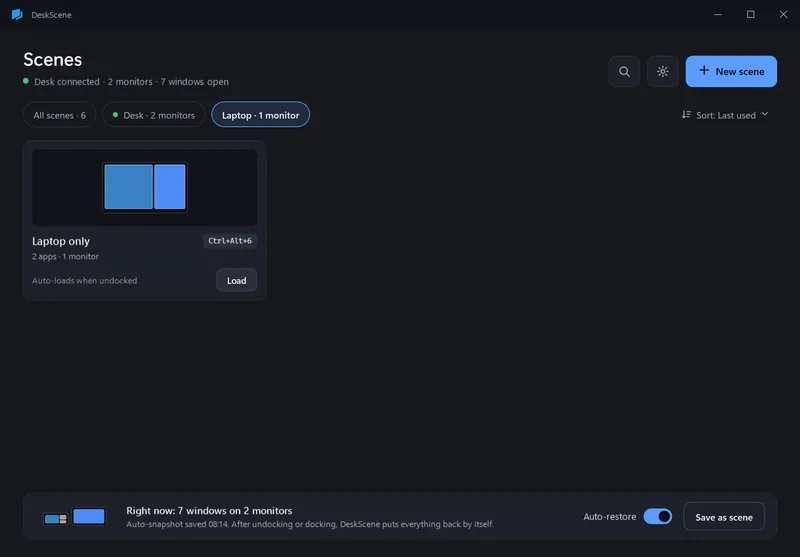
DeskScene recognizes each monitor setup by the EDID ids of its monitors – so two desks with identical screens stay apart. It takes snapshots while you work and right before you undock, freezes them the moment monitors start changing, waits until the new setup has been stable for a while, and then puts the windows back.
Link a scene to a setup and that scene loads instead: “Laptop only” when you undock, “Deep Work” when you dock at the office – including the apps that aren’t running yet. Every automatic action shows up in the history.

15-day free trial, then €9.99 once. No subscription.